Every email domain which is to use the SEPPmail Secure E-Mail Gateway in its function must be configured within the Gateway appliance and is referred to as a Managed domain.
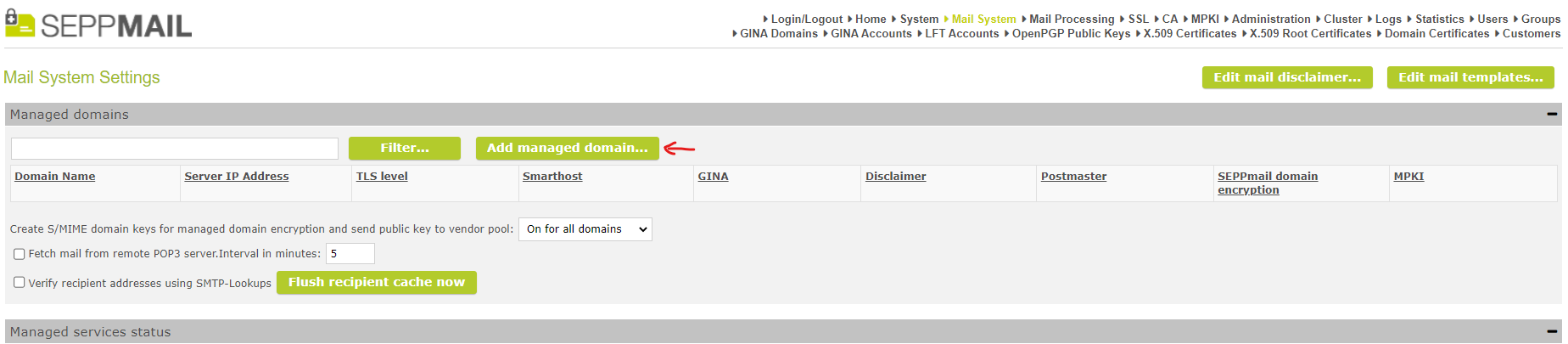
A new Managed domain is added using the Add Managed Domain... button.
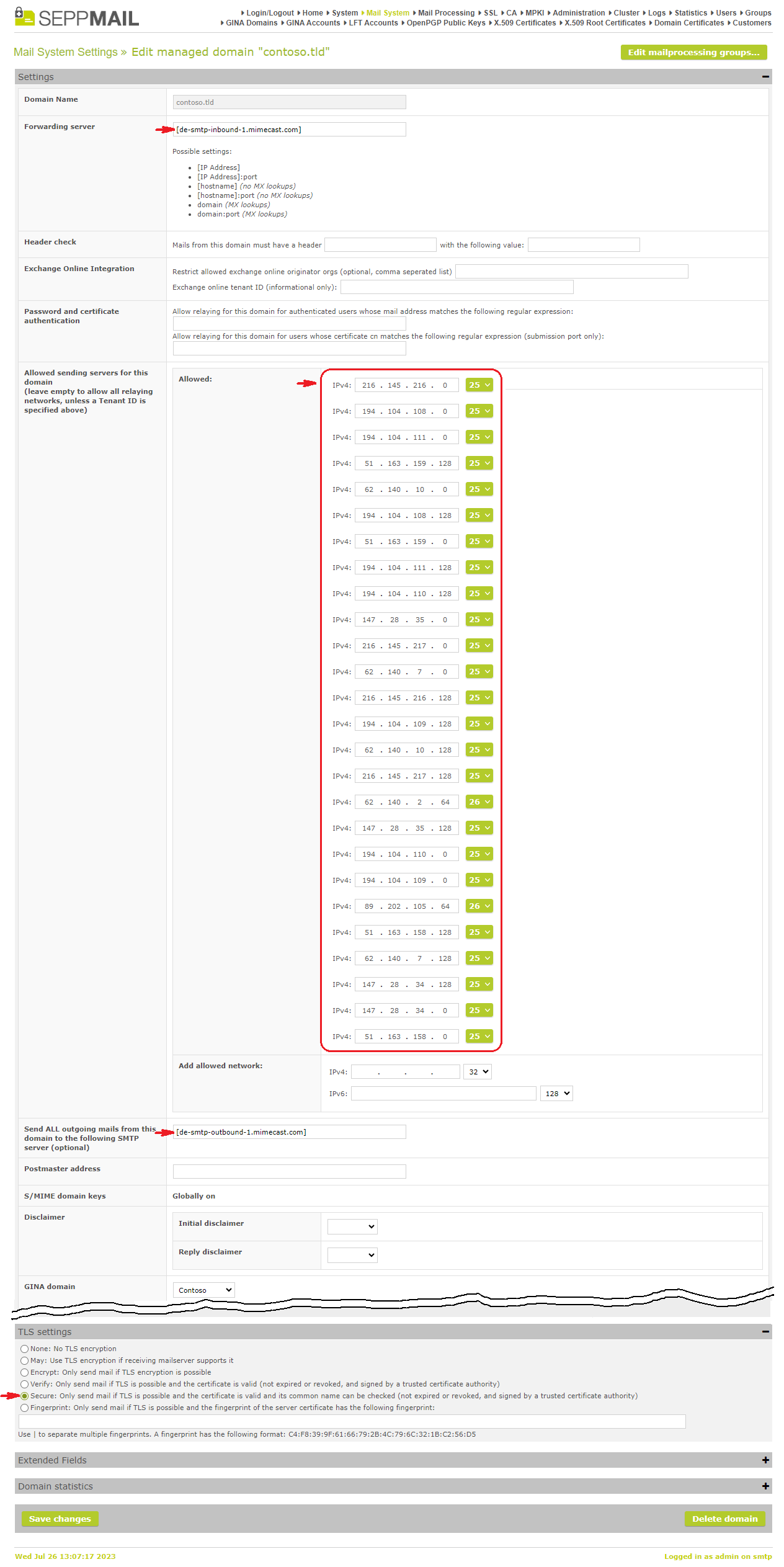
In the following menu in the section Settings in the section Domain name , the email domain of the organisation, for example contoso.tld is to be entered.
Under Forwarding server the mimecast server for the corresponding region must be entered (see also Email Security Cloud Gateway - Identifying Mimecast Regions).
The required servers are usually communicated by mimecast and are
<region>-smtp-inbound-1.mimecast.com
<region>-smtp-inbound-2.mimecast.com
whereby <region> is analog to the table under Email Security Cloud Gateway - Implementing SPF for Outbound Email.
The servers for the de region would therefore be as follows, for example:
de-smtp-inbound-1.mimecast.com
de-smtp-inbound-2.mimecast.com
As the entry under Forwarding Server is treated as A record (not MX record) in the DNS query, the entry must be delimited by square brackets [ ].
As the relaying in multi-tenant systems usually is individual, all IP addresses of the mimecast Cloud Server have to be entered individually under Allowed sending servers for this domain instead of globally in the superordinate menu Mail System in the section Relaying.
The servers to be entered differ depending on the region and can be determined from the table of required SPF entries under Email Security Cloud Gateway - Implementing SPF for Outbound Email.
To do this, the entry from ‘include:’ of the SPF entry of the respective region must be determined as follows, for example:
dig <region>._netblocks.mimecast.com TXT
For example for Germany:
$ dig de._netblocks.mimecast.com TXT
; <<>> DiG 9.11.9 <<>> de._netblocks.mimecast.com TXT
;; global options: +cmd
;; Got answer:
;; ->>HEADER<<- opcode: QUERY, status: NOERROR, id: 37133
;; flags: qr rd ra; QUERY: 1, ANSWER: 1, AUTHORITY: 0, ADDITIONAL: 1
;; OPT PSEUDOSECTION:
; EDNS: version: 0, flags:; udp: 1232
;; QUESTION SECTION:
;de._netblocks.mimecast.com. IN TXT
;; ANSWER SECTION:
de._netblocks.mimecast.com. 142 IN TXT "v=spf1 ip4:51.163.158.0/24 ip4:194.104.109.0/24 ip4:194.104.111.0/24 ip4:194.104.110.21/32 ip4:194.104.110.240/28 ip4:62.140.10.21/32 ip4:62.140.7.0/24 ip4:194.104.108.240/29 ip4:194.104.108.21/32 ~all"
;; Query time: 56 msec
;; SERVER: xxx.xxx.xxx.xxx#53(xxx.xxx.xxx.xxx)
;; WHEN: Di Dez 17 14:14:54 CET 2024
;; MSG SIZE rcvd: 269
For the de region, the IPs to be entered would therefore be as follows:
51.163.158.0/24
194.104.109.0/24
194.104.111.0/24
194.104.110.21/32
194.104.110.240/28
62.140.10.21/32
62.140.7.0/24
194.104.108.240/29
194.104.108.21/32
To be able to route the outgoing email traffic for the respective Managed domain also via mimecast, under Send all outgoing mails from this domain to the following smtp server enter [de-smtp-outbound-1.mimecast.com] or [de-smtp-outbound-2.mimecast.com].
In order to secure the connection to mimecast via TLS to an appropriately high degree, in the section TLS settings the radio button should be set to Secure .
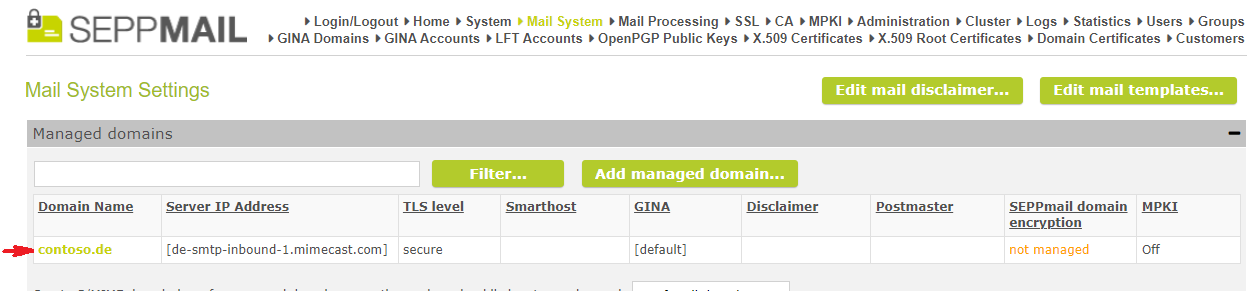
After the successful creation of the Managed domain, the SEPPmail Secure E-Mail Gateway returns to the main menu. There, in the column Domain name of the table in the section Managed domains, click on the newly created entry contoso.de entry.
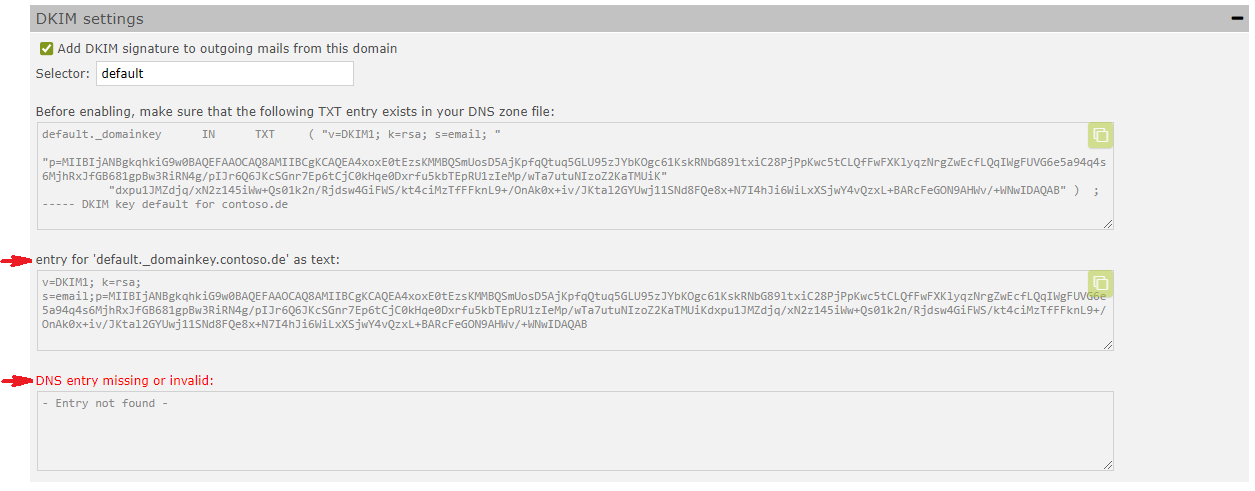
In the next menu in section DKIM Settings in the section entry for '<selector>._domainkey.mycompany.tld' as text: you can find the DNS entry to be created by the customer.
If the DNS entry was created correctly and could be read by SEPPmail Secure E-Mail Gateway, the section DNS entry missing or invalid: changes to found a valid DNS entry for this DKIM key: and the DNS entry is displayed.

Additional configuration steps of a Managed domain can be found under Mail System, if necessary.